Process up to 200 images per job — pick your settings once, run them all.
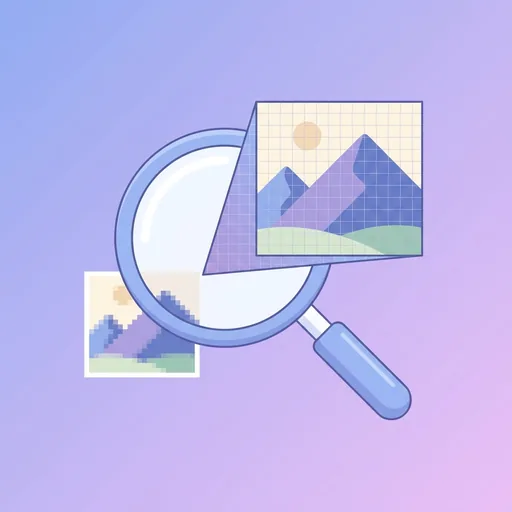
Take a small or low-resolution image and get back a 2× or 4× version with the detail intact. Unlike traditional resampling (which just stretches existing pixels and goes blurry), our AI upscaler infers what the missing detail should look like — sharp edges, recognisable textures, faces with actual features. Drop the image, click Upscale, download the result. The first one's free.
How AI upscaling differs from "make it bigger"
If you take a 500-pixel-wide image and stretch it to 2000 pixels in Photoshop or any traditional tool, you get a blurry 2000px image. The information density is identical to the original — there are just bigger pixels. Our upscaler does something fundamentally different: it uses a neural network trained on millions of high-resolution photos to predict what the high-res version of your image would look like. The output has detail that wasn't there in the input, inferred from the model's understanding of how real-world subjects look.
This means upscaling works best on natural images with clear subjects — photos of people, animals, products, landscapes, vehicles. It works decently on illustrations and digital art (use our Anime Enhancer for line-art content specifically). It works less well on heavily-compressed JPGs where the original already has visible artifacts, because the AI tries to upscale the artifacts too. Run them through the Photo Enhancer first to clean them up.
How to upscale an image
- Drop your image. JPG, PNG, WebP, HEIC all work. Input limits: 10 MP free, 25 MP signed in, 50 MP Premium.
- Pick a scale factor. 2× doubles each dimension (4× area). 4× quadruples each dimension (16× area). 4× takes about 2× as long to process.
- Wait 8–15 seconds for the AI to process. Output max is 200 MP — a 4× upscale of an 8 MP source lands at 128 MP.
- Download the upscaled JPG. Output filename gets a `_2x` or `_4x` suffix.
Common use cases
Print-size enlargement. Got a 1500×1000 photo and want to print it at 20×30 inches? Run a 4× upscale to 6000×4000, then send to print at 200 DPI. The output handles framed prints up to 24 inches per side without visible quality loss.
Old digital photos. Camera tech in 2008 took 5 MP photos. Modern displays are 4K (8 MP). Upscaling old photos to 4K resolution makes them look like they were shot today.
Low-res screenshots. A small UI screenshot blown up for a presentation goes from blurry to crisp. Our upscaler preserves text shapes much better than a stretch.
E-commerce hero images. A 800×600 product photo upscaled to 3200×2400 lets you show the full image at hero size without pixelation.
If you also want to clean up colour, sharpness, and exposure in the same pass, run the result through the Photo Enhancer after upscaling.
Limitations and what to expect
The AI is good but not magic. It can't recover detail that was never captured — you can't read text from a Times Square sign in the background of a 200×150 thumbnail. It can't undo motion blur (use the Sharpener for that). It can produce strange "hallucinated" details on extremely low-resolution faces (use the Face Enhancer for face-specific upscaling). And it costs 10 credits per call because each upscale uses real GPU compute — that's why the daily caps are tight.
Frequently asked questions
How is this different from just resizing the image bigger?
Traditional resize just stretches existing pixels — result is blurry. AI upscaling uses a neural network to invent plausible high-resolution detail, so the result actually looks sharp.
How many upscales per day?
Anonymous: 1/day. Free signed-in: 1/day. Premium: 15/day. AI upscaling uses real GPU minutes which is why caps are tight.
What's the maximum input size?
10 MP free, 25 MP signed in, 50 MP Premium. Output can be up to 200 MP (a 4× upscale of a 50 MP input).
Will it work on text-heavy screenshots?
Yes — text shapes are well-preserved. The AI is particularly good at upscaling UI mockups and slide screenshots without smearing.
Can I upscale to print-size?
Yes — a 1500×1000 photo upscaled 4× to 6000×4000 prints cleanly at 20×30 inches at 200 DPI.
What about anime / illustrations?
Use our Anime Enhancer instead — it's specifically tuned for line-art and flat colours. The general upscaler can smear those into photo-realism.
Will the file size grow a lot?
Yes — a 4× upscale produces a 16× larger image, so file size grows roughly proportionally. Compress with our JPG Compressor afterwards if needed.
Does it work on faces in low-resolution group photos?
Better than nothing, but for tiny faces specifically the Face Enhancer is the right tool. It uses a face-specialised model that recovers eyes/lips/eyebrows much more accurately.
About AI Image Upscaler
AI Image Upscaler is a free online tool from Wallpapers.com that runs entirely in your browser — no install, no watermark, no email sign-up for the first try.
Upscale any image 2× or 4× while preserving sharpness.
How to use AI Image Upscaler
- Drop your image into the upload area (single or batch — toggle Bulk at the top).
- Pick any settings the tool exposes (size, format, quality).
- Click Run. The result downloads automatically — no manual save step.
When to use it
Common use cases include:
prepping images for web upload, e-commerce listings, social media platforms with format constraints, and converting files from one device or app to another.
Free vs Premium
Every visitor gets a free trial run; signed-in free users get a higher daily quota. Subscribe to
Premium
for unlimited runs, bulk processing up to 200 images per job, priority queue, and ad-free browsing.
Related tools
Looking for something slightly different? Try the
AI Photo Enhancer
,
AI Image Sharpener
or
AI Face Enhancer
— or browse all
Enhance tools.