The Complete Image Compression Guide
Quality vs file size — pick the right setting for every use case.
Image compression is a tradeoff: smaller file = faster load = better SEO + happier users, but go too far and your photos look like a 1990s GIF. This guide covers the sweet spots for every situation.
Lossy vs lossless — start here
Lossy compression throws away data your eyes won't notice. JPG, WebP (lossy mode), AVIF.
Lossless compression rearranges data without throwing any away. PNG, WebP (lossless mode). Bigger files, perfect quality.
Use lossless for logos, screenshots, and anything with sharp edges. Use lossy for photos.
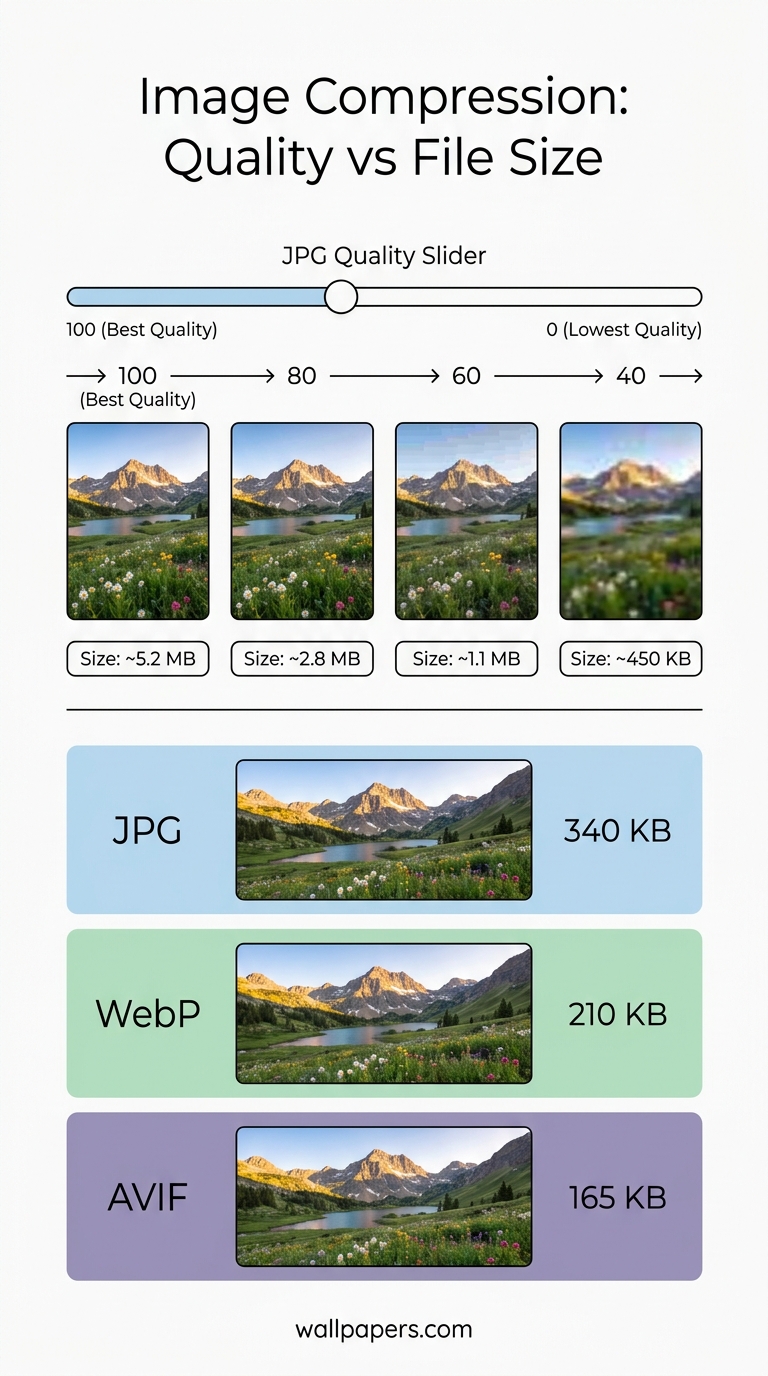
JPG quality settings
- 95-100 — visually identical to original. Use only for archival.
- 80-90 — sweet spot for most photos. Indistinguishable from 100 to 99% of viewers.
- 70-80 — fine for thumbnails and listing pages.
- 60-70 — visible quality loss starts. Use for under-the-fold images only.
- Below 60 — visible artifacts. Don't.
Try our JPG compressor with a slider to see the quality / size tradeoff live.
WebP and AVIF
WebP at quality 80 typically matches JPG at 90. AVIF at quality 60 typically matches JPG at 90. Both modern formats use perceptual compression that prioritises what humans actually see.
For batch conversion, use bulk processing — convert 200 JPGs to WebP in one job.
Lossless PNG optimization
Even lossless PNGs can shrink 20-50% by stripping unused metadata and re-encoding with better compression. Run any PNG through our PNG compressor to see the saving.
When NOT to compress
- Print files — keep maximum quality.
- Source originals you might edit again — compression is destructive.
- Wallpapers you'll set on a 4K screen — visible artifacts at low quality become very visible at large sizes.
The bigger picture
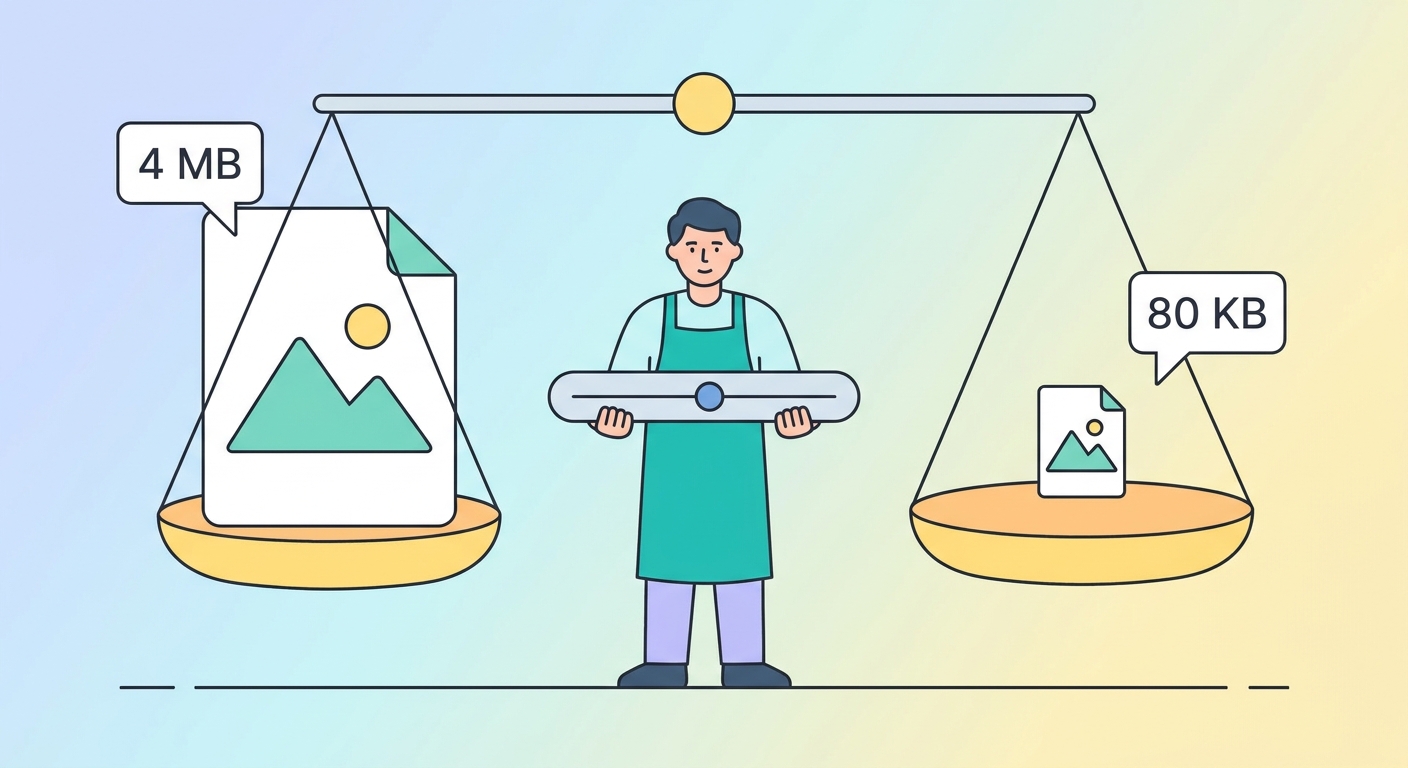
Compression is one piece. Choosing the right format matters more than tweaking quality. Right-sizing the dimensions matters more than both. The combination — right format, right size, right quality — is the difference between a 4 MB hero image and a 80 KB one.
Try our free tools
Most of these guides pair with a hands-on tool you can use right now — no sign-up required for the first run:
- Image resizer — pixel-perfect downscale + upscale.
- Convert to WebP — 30-50% smaller files than JPG.
- Background remover — one-click cutout, transparent PNG.
- Favicon generator — every browser size from one source.
- Social-media resizer — every platform's exact dimensions.
- Bulk processing — apply any tool to up to 200 images at once.
Browse the full tool catalog.